集群安装
配置http repo、操作系统基础配置、机器名配置、配置免密、JDK配置、安装Ambari Server、通过Ambari安装其他组件等操作说明。
CentOS/Redhat/银河麒麟/欧拉等操作系统(RPM包管理)
以下以Centos7为例说明,其他系统基本上没差别。
CentOS7.6(x86_64)、三台服务器(hdp1、hdp2、hdp3)
- (1): 按照操作系统支持列表, 准备操作系统
- (2): 数据库支持列表和库列表, 准备数据库
- (3): JDK推荐版本,准备JDK
1.配置安装安装源
(1)下载介质
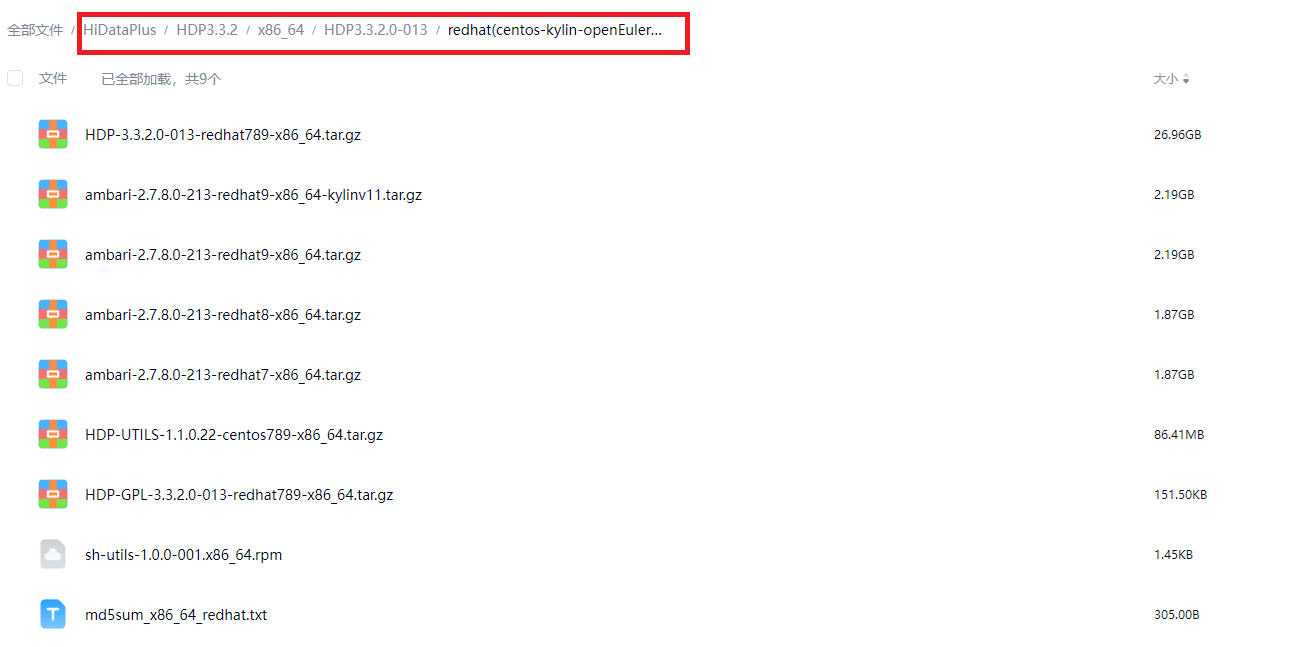
- 下载地址
- x86_64
- aarch64(arm64)
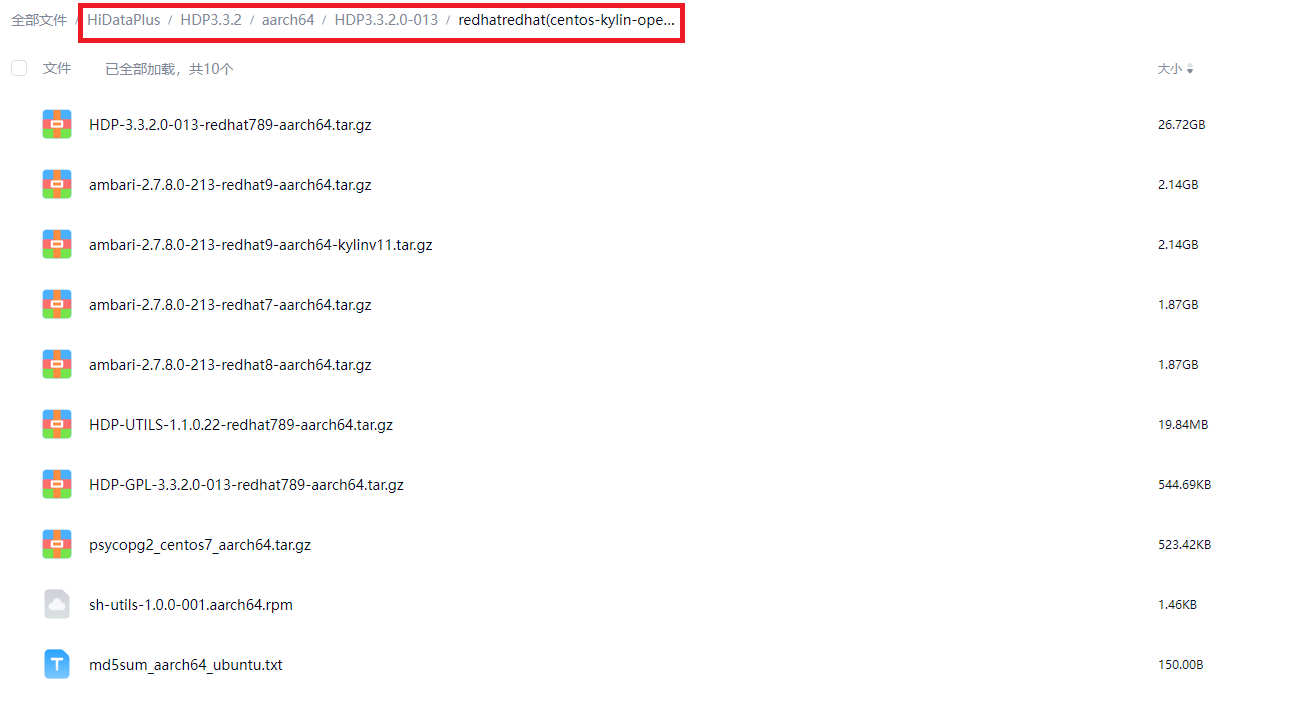
各操作系统使用的包对应关系 首先根据操作系统支持列表找到最后一列对应 Ambari Repo 版本,然后根据下表选择安装包。
| 对应 Ambari Repo 版本 | CPU架构 | 安装包 | 其他说明 |
|---|---|---|---|
| redhat7 | x86_64 | ambari-2.7.8.0-213-redhat7-x86_64.tar.gz HDP-3.3.2.0-013-redhat789-x86_64.tar.gz HDP-UTILS-1.1.0.22-redhat789-x86_64.tar.gz | |
| redhat8 | x86_64 | ambari-2.7.8.0-213-redhat8-x86_64.tar.gz HDP-3.3.2.0-013-redhat789-x86_64.tar.gz HDP-UTILS-1.1.0.22-redhat789-x86_64.tar.gz | |
| redhat9 | x86_64 | ambari-2.7.8.0-213-redhat9-x86_64.tar.gz HDP-3.3.2.0-013-redhat789-x86_64.tar.gz HDP-UTILS-1.1.0.22-redhat789-x86_64.tar.gz | |
| redhat7 | aarch64(arm64) | ambari-2.7.8.0-213-redhat7-aarch64.tar.gz HDP-3.3.2.0-013-redhat789-aarch64.tar.gz HDP-UTILS-1.1.0.22-redhat789-aarch64.tar.gz | |
| redhat8 | aarch64(arm64) | ambari-2.7.8.0-213-redhat8-aarch64.tar.gz HDP-3.3.2.0-013-redhat789-aarch64.tar.gz HDP-UTILS-1.1.0.22-redhat789-aarch64.tar.gz | |
| redhat9 | aarch64(arm64) | ambari-2.7.8.0-213-redhat9-aarch64.tar.gz HDP-3.3.2.0-013-redhat789-aarch64.tar.gz HDP-UTILS-1.1.0.22-redhat789-aarch64.tar.gz |
(2) 安装httpd服务(或其他)
以hdp1作为ambari的yum源存储位置(示例,可以按需调整)
#安装httpd
yum install -y httpd

#启动http
systemctl start httpd

#将httpd加入到开机自启
systemctl enable httpd
(3) 配置http站点
上传安装包并解压 将centos7对应的压缩包,上传至hdp1服务器后解压
# 先在/var/www/html目录下创建ambari、hdp、hdp-utils文件夹
mkdir /var/www/html/ambari
mkdir /var/www/html/hdp
mkdir /var/www/html/hdp-utils

tar -zxf /opt/ambari-2.7.8.0-213-redhat7-x86_64.tar.gz.tar.gz -C /var/www/html/ambari # 这里的-C是指定解压目录
tar -zxf /opt/HDP-3.3.2.0-013-redhat789-x86_64.tar.gz  -C /var/www/html/hdp
tar -zxf /opt/HDP-UTILS-1.1.0.22-redhat789-x86_64.tar.gz -C /var/www/html/hdp-utils/
可以采用curl或者浏览验证
# hdp1 可以替换为IP地址
curl http://hdp1/ambari/2.7.8.0-213/

# hdp1 可以替换为IP地址
curl http://hdp1/hdp/3.3.2.0-013/

# hdp1 可以替换为IP地址
curl http://hdp1/hdp-utils/1.1.0.22/
2. 操作系统相关配置
(1) 关闭防火墙
#通过此命令查看防火墙状态
systemctl status firewalld

#关闭防火墙
systemctl stop firewalld

#关闭防火墙开机自启
systemctl disable firewalld
(2) 关闭SELinux
#临时性关闭(立即生效,但是重启服务器后失效)
#设置selinux为permissive模式(即关闭)
setenforce 0
#设置selinux为enforcing模式(即开启)
setenforce 1

#永久性关闭(这样需要重启服务器后生效)
sed -i 's/SELINUX=enforcing/SELINUX=disabled/' /etc/selinux/config
(3) 时间服务器配置
启用ntp或者其他时间同步服务(自行配置)。一般情况下,公有云或者私有云会有统一配置。 如果时间不同步,将造成很多莫名奇妙的问题,强烈建议安装前手工检查下每台服务器的时间是否一致。
3. 配置机器名
#通过/etc/hosts 来配置机器名,集群所有机器都需要修改
vi /etc/hosts
末尾内容如下:
192.168.80.xxx hdp1
192.168.80.xxx hdp2
192.168.80.xxx hdp3
4. 安装JDK
所有节点都需要安装
- 方式一:通过yum安装操作系统自带的JDK
yum install -y java-1.8.0-openjdk-devel java-1.8.0-openjdk
- 方式二:上传包+配置
将已经准备好的jdk上传至服务器,然后解压
tar -zxf jdk-8u211-linux-x64.tar.gz -C /opt/jdk8
解压后配置jdk的环境变量
vi /etc/profile
#添加如下内容,具体的jdk路径根据自己的实际路径填
export JAVA_HOME=/opt/apps/jdk1.8
export PATH=$PATH:$JAVA_HOME/bin
5. 配置免密
安装Hadoop的集群基础是Ambari Server所在机器需要与集群节点配置免密,这是必需步骤。 以hdp1安装Ambari Server为例说明如下:
(1) 生成公钥
在Ambari Servers所在主机上生成本机公钥。
ssh-keygen -t rsa #一直按Enter即可,直到生成公钥,如下所示
[root@hdp1 ~]# ssh-keygen -t rsa
Generating public/private rsa key pair.
Enter file in which to save the key (/root/.ssh/id_rsa):
Created directory '/root/.ssh'.
Enter passphrase (empty for no passphrase):
Enter same passphrase again:
Your identification has been saved in /root/.ssh/id_rsa.
Your public key has been saved in /root/.ssh/id_rsa.pub.
The key fingerprint is:
SHA256:ACrASg2gjSQ5bVXfCwR6HHeAW2KLmGlTgUqU+qFCo0c root@hdp2
The key's randomart image is:
+---[RSA 2048]----+
|B*+o+o+o+..      |
|BB+o.++=.o       |
|O+o=.o+=o .      |
|++E ..o. . .     |
|o=.o    S .      |
|+ o              |
|..               |
|                 |
|                 |
+----[SHA256]-----+
(2)分发公钥
在Ambari Servers所在主机上生成的公钥发送给集群其他所有节点。
# 公钥也要发给自己
ssh-copy-id -i hdp1
ssh-copy-id -i hdp2
ssh-copy-id -i hdp3
# 执行过程如下所示[root@hdp1 ~]# ssh-copy-id hdp1/usr/bin/ssh-copy-id:
INFO: Source of key(s) to be installed: "/root/.ssh/id_rsa.pub"The authenticity of host 'hdp1 (192.168.80.xxx)' can't be established.ECDSA key fingerprint is SHA256:MHGsmoui6MpLb2qKf6QtKhP2KUIfiyFfzWEVpt8RVqE.ECDSA key fingerprint is MD5:30:aa:42:5a:2c:dc:67:21:65:aa:6d:xx:xx:xx:xx:xx.Are you sure you want to continue connecting (yes/no)? yes/usr/bin/ssh-copy-id: INFO: attempting to log in with the new key(s), to filter out any that are already installed/usr/bin/ssh-copy-id: INFO: 1 key(s) remain to be installed -- if you are prompted now it is to install the new keysroot@hdp1's password:Number of key(s) added: 1Now try logging into the machine, with:   "ssh 'hdp1'"and check to make sure that only the key(s) you wanted were added.
(3)验证测试
#依次执行
ssh  hdp1
ssh  hdp2
ssh  hdp3
如果不需要输入用户名密码就能登录,则执行成功。
6. 安装Ambari Server
以hdp1作为ambari server的主机(示例,可以按需调整)
(1) 配置yum源
配置ambari源
vi /etc/yum.repos.d/ambari.repo
#内容参考如下 hdp1根据实际情况调整
[ambari]
name=ambari
baseurl=http://hdp1/ambari/2.7.8.0-213/
gpgcheck=0
yum创建缓存
yum clean all
yum makecache

#通过yum repolist命令验证即可
yum repolist
(2) 安装ambari-server
yum install -y ambari-server
(3) 放置jdbc驱动到指定目录(按需)
如果使用mysql,需要手工放置mysql驱动jar
# 创建目录
mkdir -p /usr/share/java

# 将mysql对应版本的jdbc驱动放到此目录下
mv /root/mysql-connector-java-***.jar /usr/share/java/
(4) 配置化Ambari Server使用的数据库
各个数据库的初始化脚本在/var/lib/ambari-server/resources/目录下,对应不同的数据库类型选择不同的sql,以Postgresql为例:
可以在ambari主机配置postgresql客户端,或者将Ambari-DDL-Postgres-CREATE.sql复制到有postgresql客户端的脚本,执行如下命令
psql -d ambari -h 192.168.0.90 -p 5432 -U ambari -f Ambari-DDL-Postgres-CREATE.sql
(5) 配置ambari-server
- 方式一: 一个命令配置
以Postgresql为例,数据库主机为:ambari
ambari-server setup -s \
  -j /usr/lib/jvm/java \
  --database=postgres \
  --databasehost=ambari \
  --databaseport=5432 \
  --databasename=ambari \
  --databaseusername=ambari \
  --databasepassword=ambari
其中:
-j : JAVA_HOME目录,java安装目录
database:数据库类型
databasehost:数据库主机名
databaseport: 数据库端口
databasename: dbName或者Schema
databaseusername: 用户名
databasepassword: 密码
- 方式二:向导式配置 执行ambari-server setup,数据库以Mysql为例:
[root@hdp1 ~]# ambari-server setup
Using python  /usr/bin/python
Setup ambari-server
Checking SELinux...
SELinux status is 'disabled'
Customize user account for ambari-server daemon [y/n] (n)? y
Enter user account for ambari-server daemon (root):
Adjusting ambari-server permissions and ownership...
Checking firewall status...
Checking JDK...
[1] Oracle JDK 1.8 + Java Cryptography Extension (JCE) Policy Files 8
[2] Custom JDK
==============================================================================
Enter choice (1): 2
WARNING: JDK must be installed on all hosts and JAVA_HOME must be valid on all hosts.
WARNING: JCE Policy files are required for configuring Kerberos security. If you plan to use Kerberos,please make sure JCE Unlimited Strength Jurisdiction Policy Files are valid on all hosts.
Path to JAVA_HOME: /opt/apps/jdk1.8
Validating JDK on Ambari Server...done.
Check JDK version for Ambari Server...
JDK version found: 8
Minimum JDK version is 8 for Ambari. Skipping to setup different JDK for Ambari Server.
Checking GPL software agreement...
GPL License for LZO: https://www.gnu.org/licenses/old-licenses/gpl-2.0.en.html
Enable Ambari Server to download and install GPL Licensed LZO packages [y/n] (n)?
Completing setup...
Configuring database...
Enter advanced database configuration [y/n] (n)? y
Configuring database...
==============================================================================
Choose one of the following options:
[1] - PostgreSQL (Embedded)
[2] - Oracle
[3] - MySQL / MariaDB
[4] - PostgreSQL
[5] - Microsoft SQL Server (Tech Preview)
[6] - SQL Anywhere
[7] - BDB
==============================================================================
Enter choice (1): 3
Hostname (localhost): hdp1
Port (3306):
Database name (ambari):
Username (ambari):
Enter Database Password (bigdata):
Re-enter password:
Configuring ambari database...
Enter full path to custom jdbc driver: /usr/share/java/mysql-connector-java-5.1.44.jar
Configuring remote database connection properties...
WARNING: Before starting Ambari Server, you must run the following DDL directly from the database shell to create the schema: /var/lib/ambari-server/resources/Ambari-DDL-MySQL-CREATE.sql
Proceed with configuring remote database connection properties [y/n] (y)?
Extracting system views...
ambari-admin-2.7.4.0.118.jar
....
Ambari repo file doesn't contain latest json url, skipping repoinfos modification
Adjusting ambari-server permissions and ownership...
Ambari Server 'setup' completed successfully.
(6) 启动ambari-server
ambari-server start
启动后可通过http://:hdp1:8080进行访问
(7)注册数据库jar(可选)
如果安装Hive、Ranger等需要页面上配置数据库的组件,需要执行以下命令注册jar, 以postgresql为例:
ambari-server setup --jdbc-db=postgres --jdbc-driver=/usr/lib/ambari-server/postgresql-42.3.8.jar
7 安装HDP组件
以hdp1作为ambari server的主机(示例,可以按需调整)
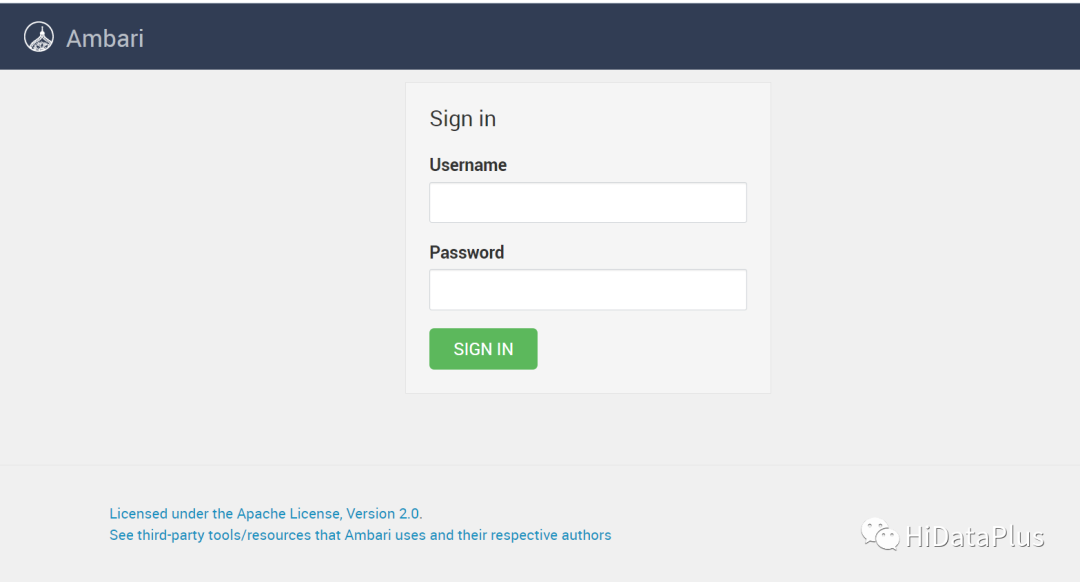
(1) 登录ambari
通过http://:hdp1:8080进行浏览器访问,默认用户名和密码都是admin
(2) 集群安装
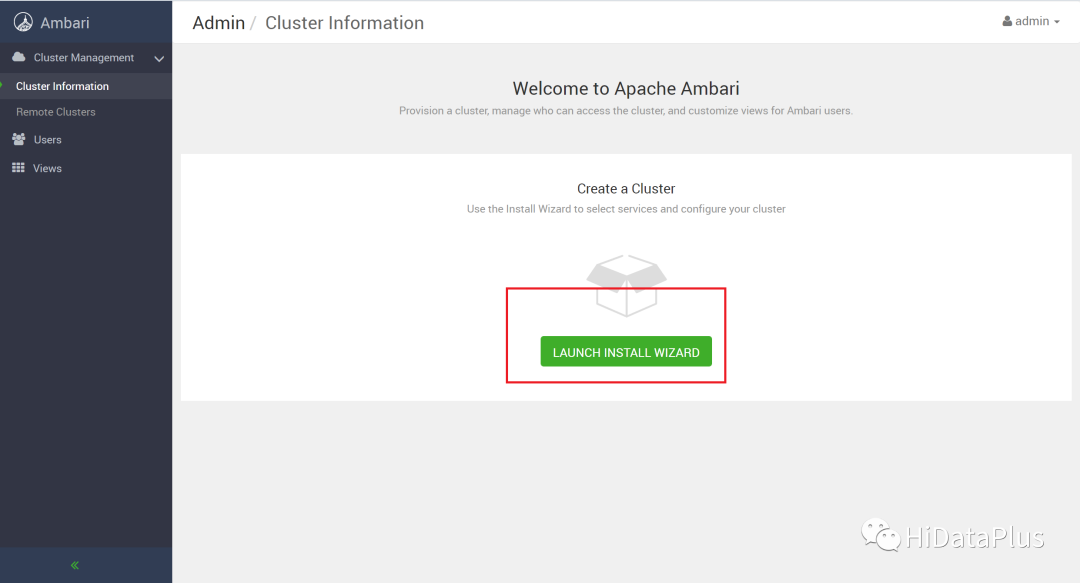
第一次登录进去的默认界面如下图所示,点击红框按钮。(如果没有,点击ClusterInformation --> LAUNCH INSTALL WIZARD)
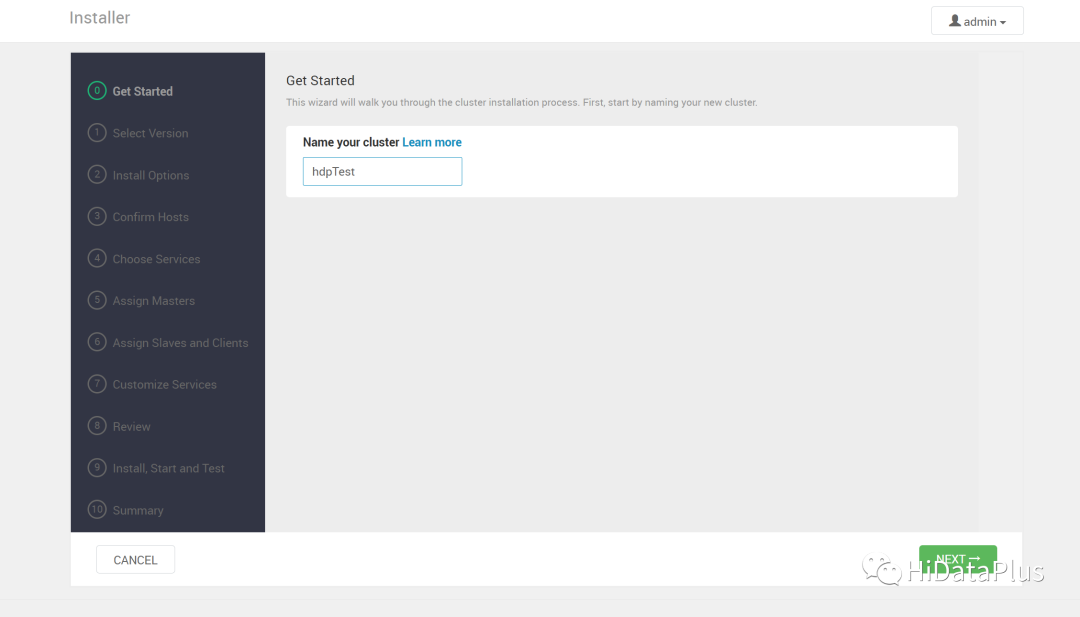
输入集群名称–>NEXT
选择HDP的版本,这里使用的是3.3版本
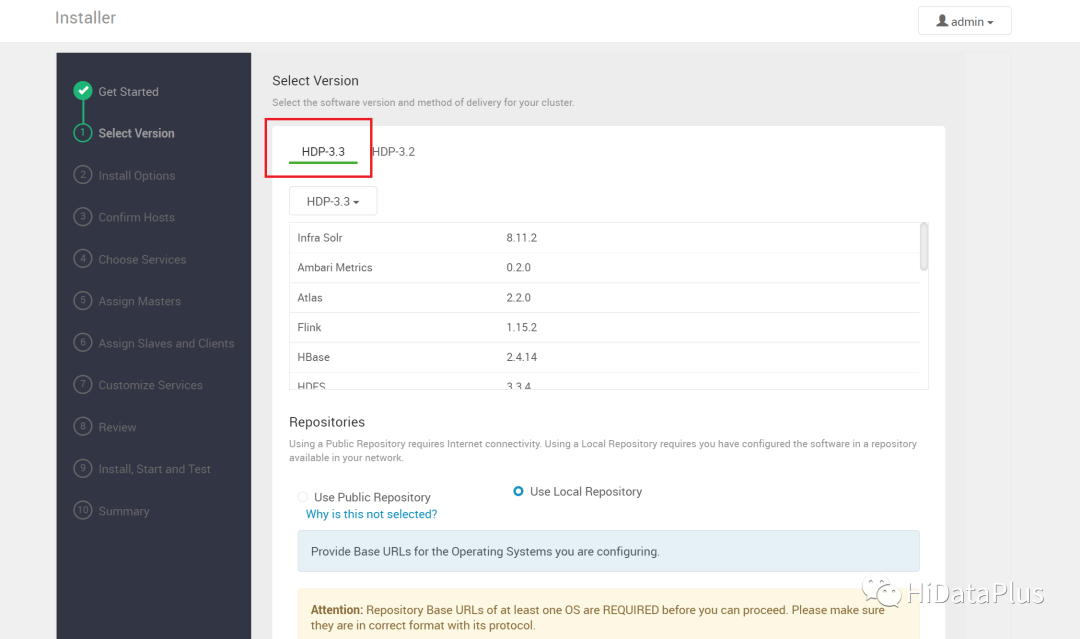
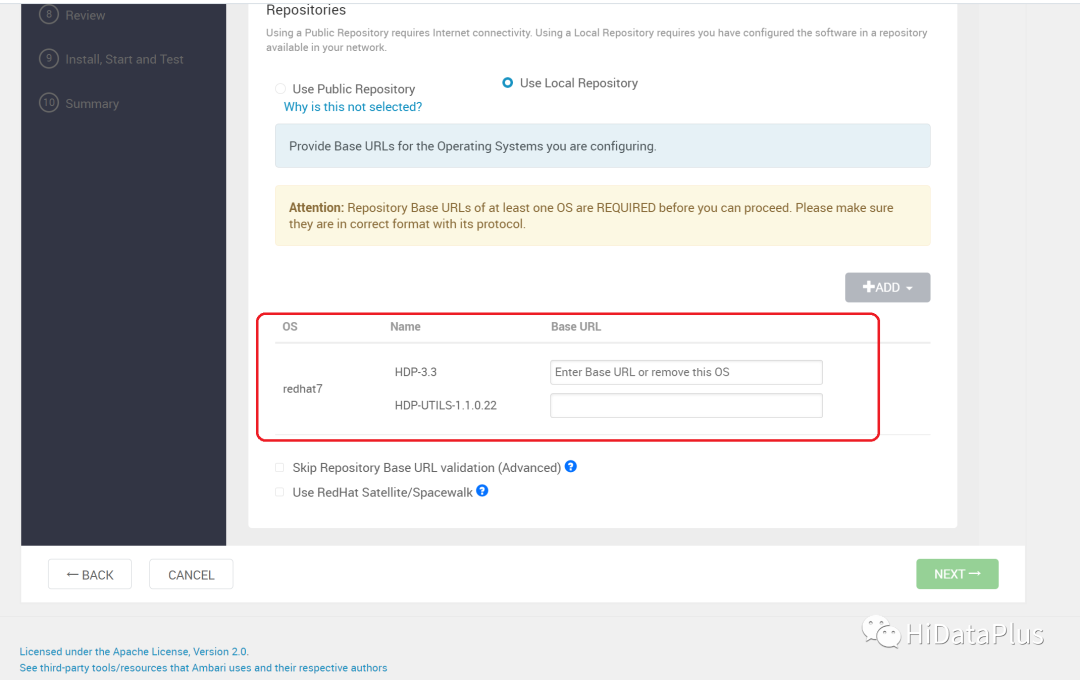
选择操作系统,本文以CentOS7为例,所以选择redhat7,默认有很多,删掉其他的,只保留一个,其他操作系统的对照关系,参考上面章节, 填写HDP和HDP-UTILS的rpm的URL,可以参考前面的httpd章节,按实际情况修改。
- HDP-3.3: http://hdp1/hdp/3.3.2.0-013/
- HDP-UTILS: http://hdp1/hdp-utils/1.1.0.22/
输入节点主机名列表
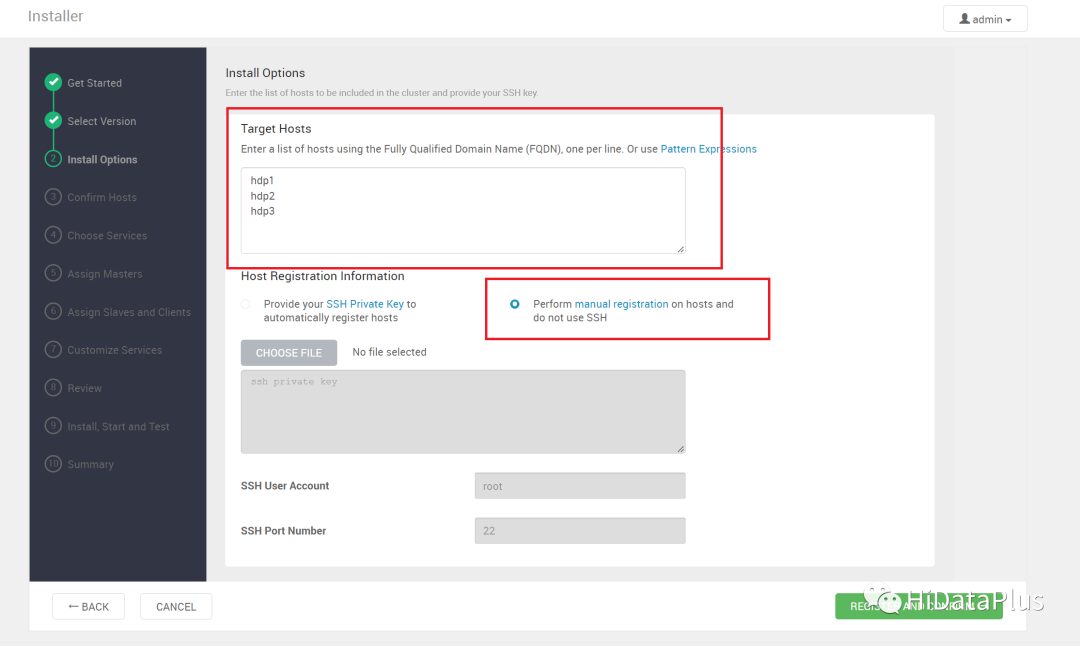 如果之前做过“配置免密”,则选择如上图所示的“Perform manual registration on hosts and do not use SSH”,如果没有,可以选择Provide your SSH Private Key to automatically register hosts
我们强烈推荐使用“配置免密”,选择如下图所示的红框。
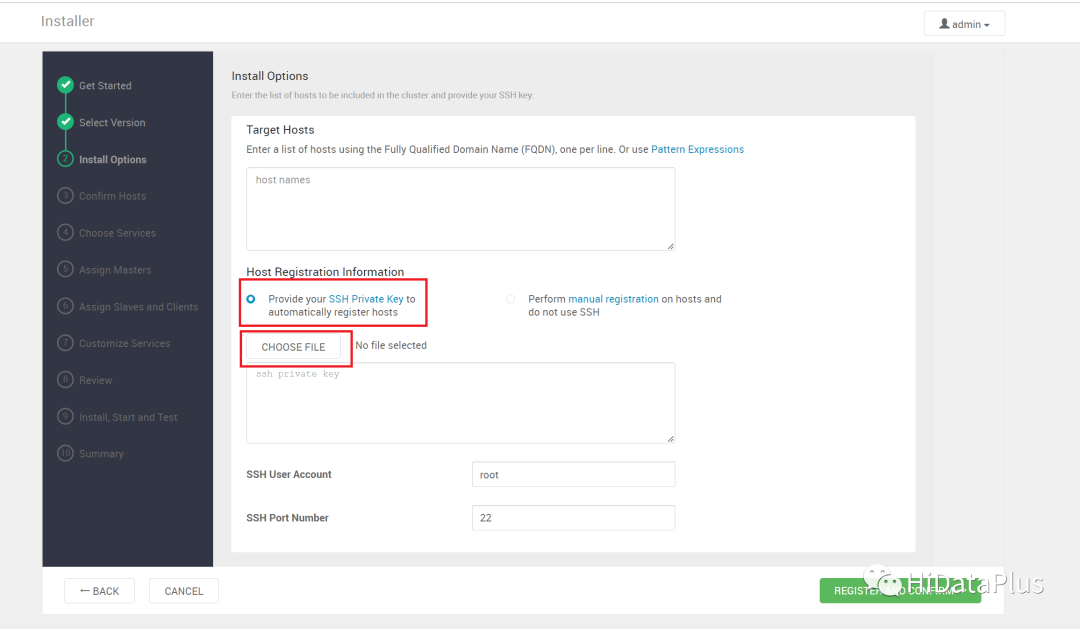
弹出框,选择ambari server主机的id_rsa,在ambari主机的~/.ssh目录下(需要root用户的)。 如果弹出Warning(一般是主机名不符合规范),可以忽略。 等待服务器注册。
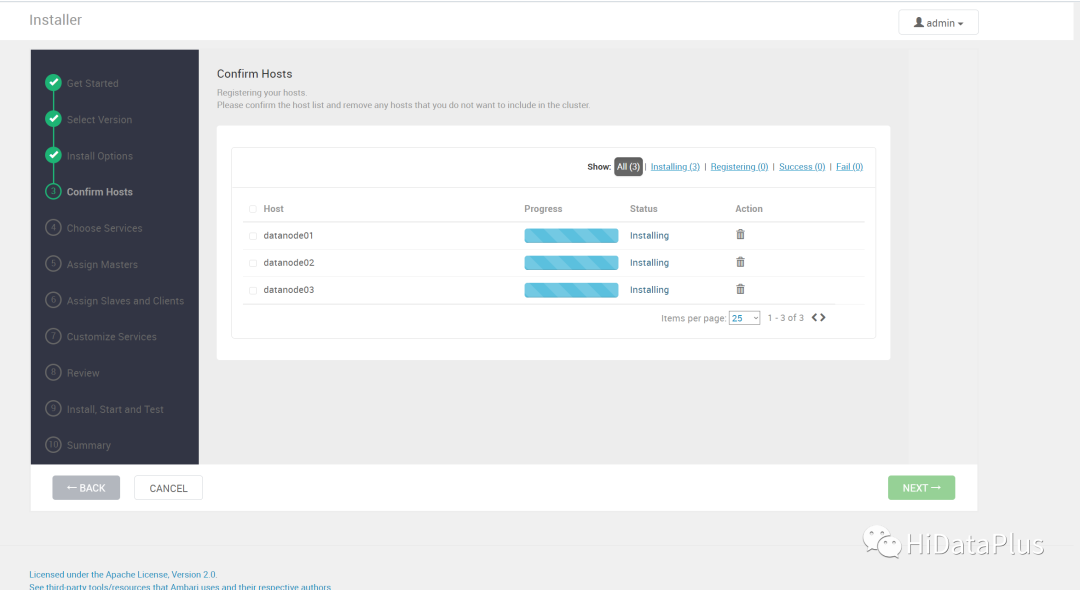
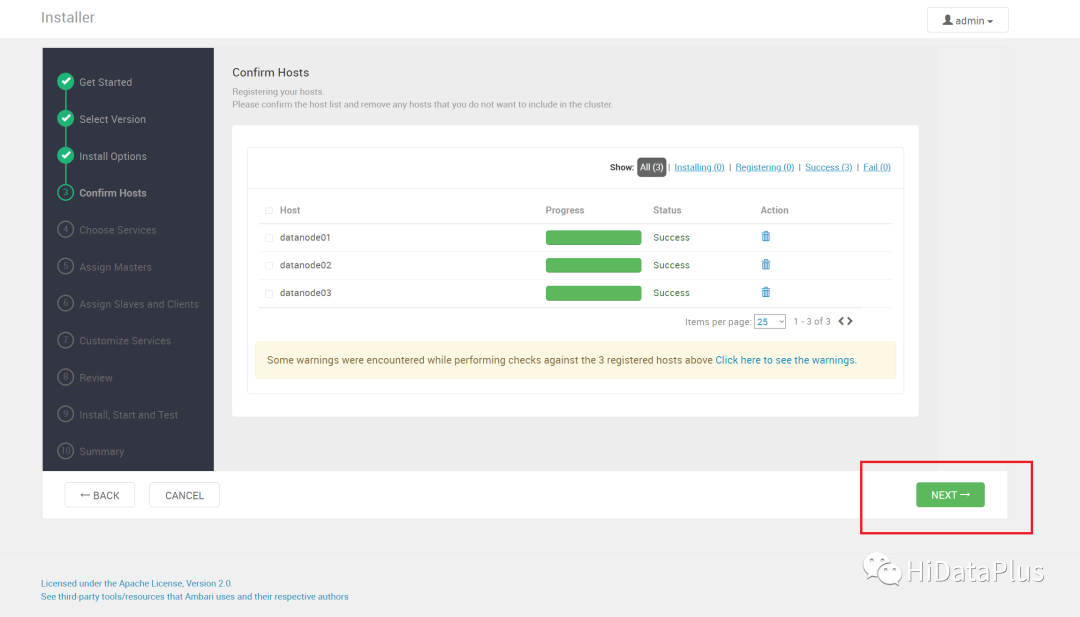
可能会检查出问题,可以参考常见问题解决。 如果NEXT按钮可用,直接点击开始下一步。(如果有Warning,则可忽略)
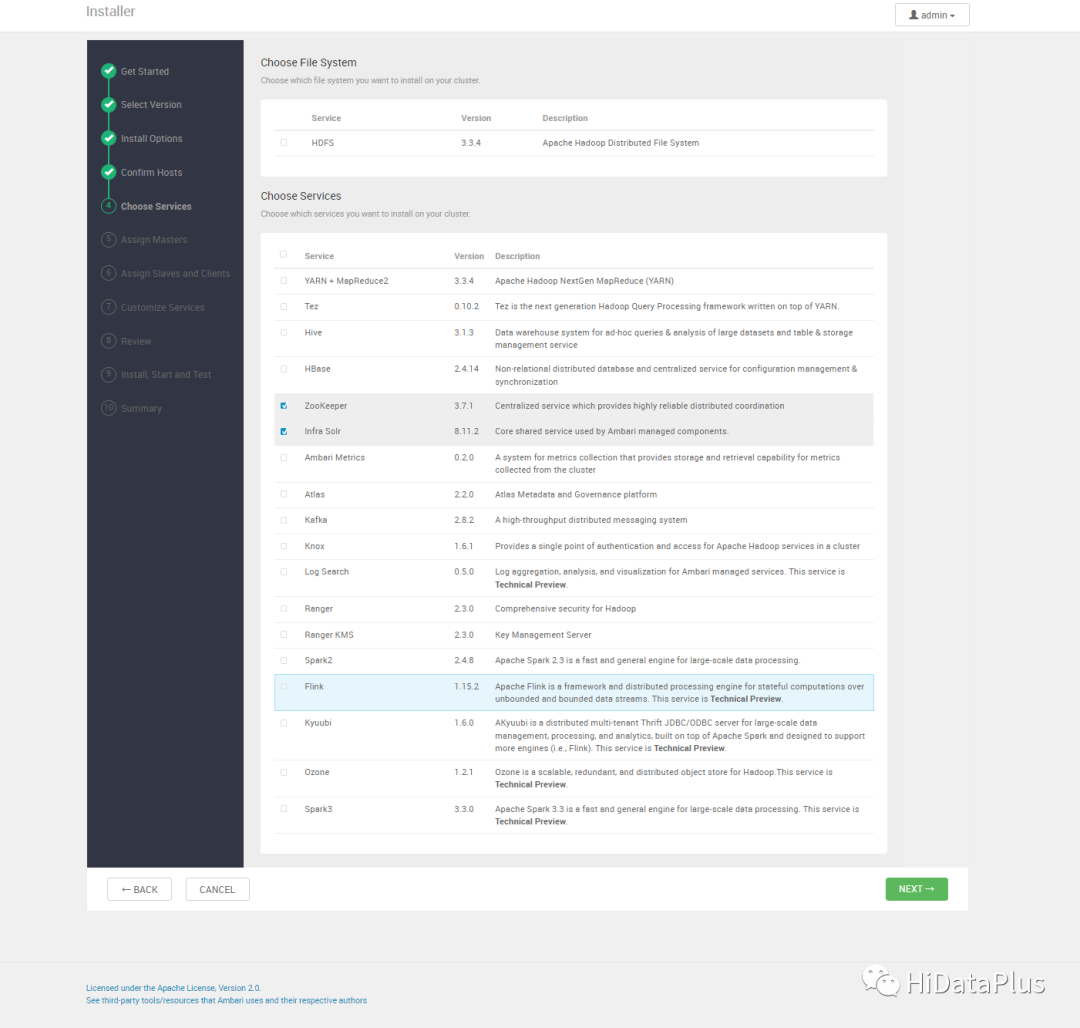
选择要安装的组件(按需选择,下图为示例),如果是第一次使用HDP,建议只选择Zookeeper一个组件熟悉安装流程,避免选择太多组件导致问题较多,情绪受挫。
选择每个节点具体安装的组件(测试的话,自动默认就行,生产安装,需要做节点规划)
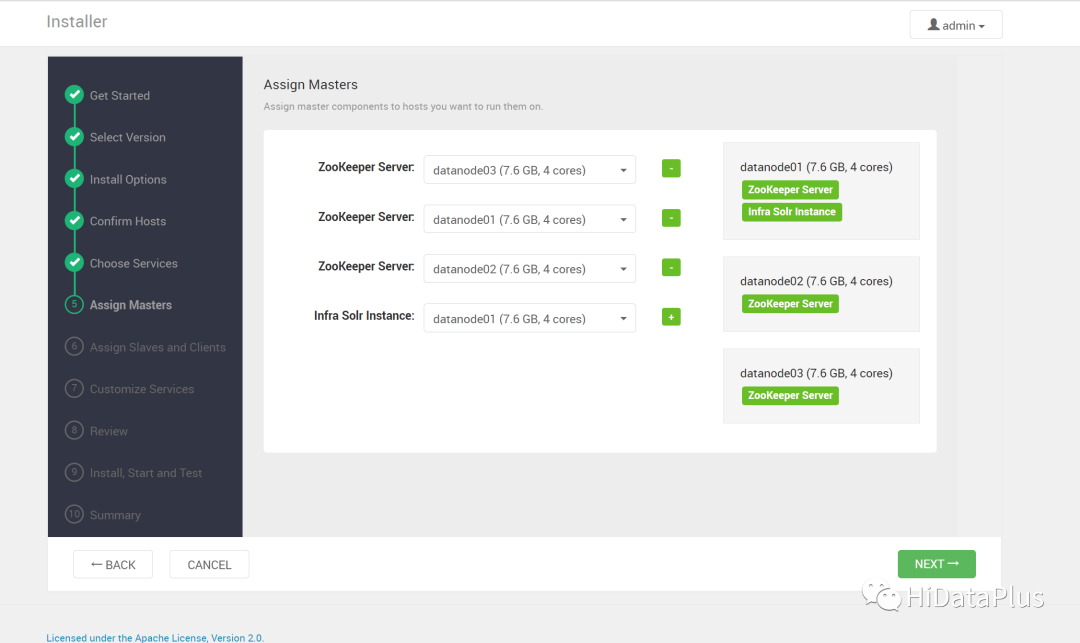
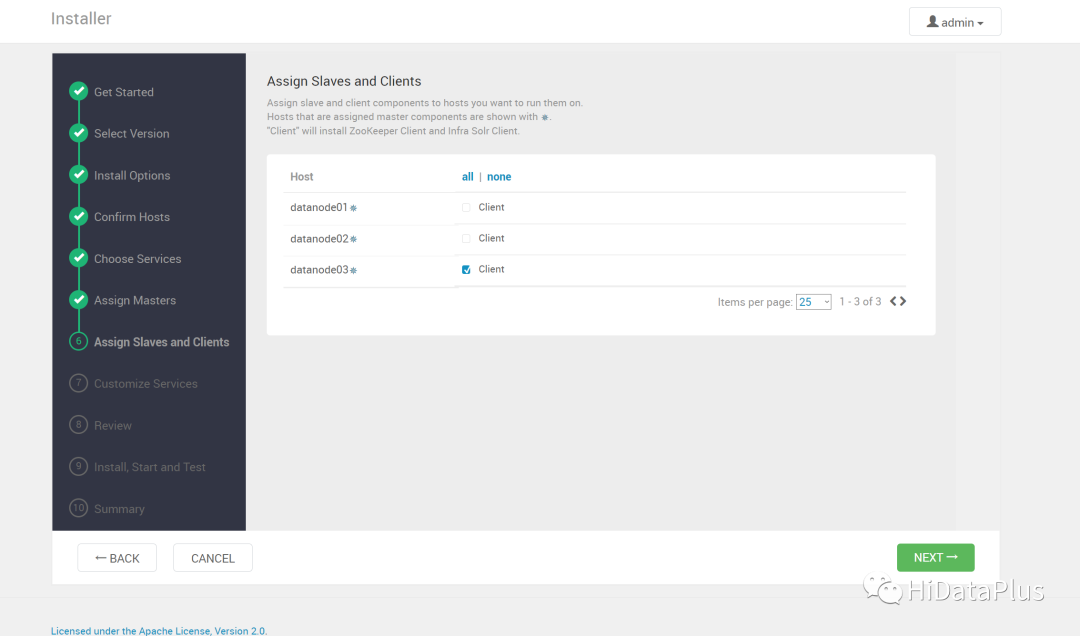
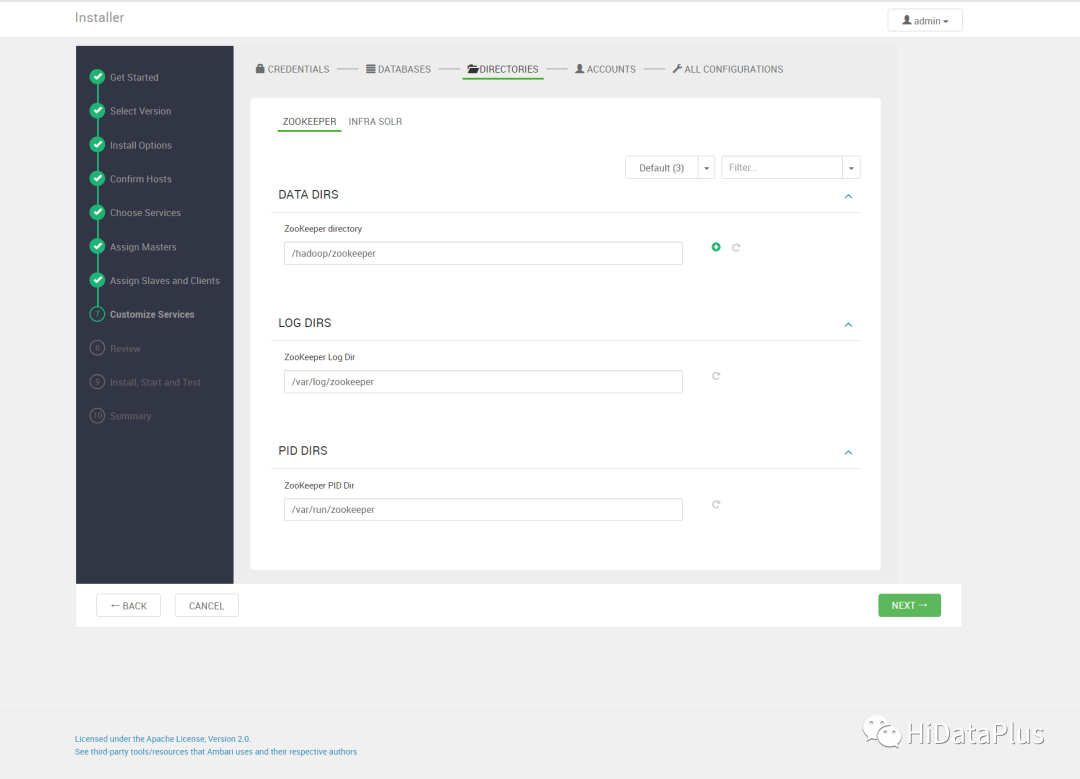
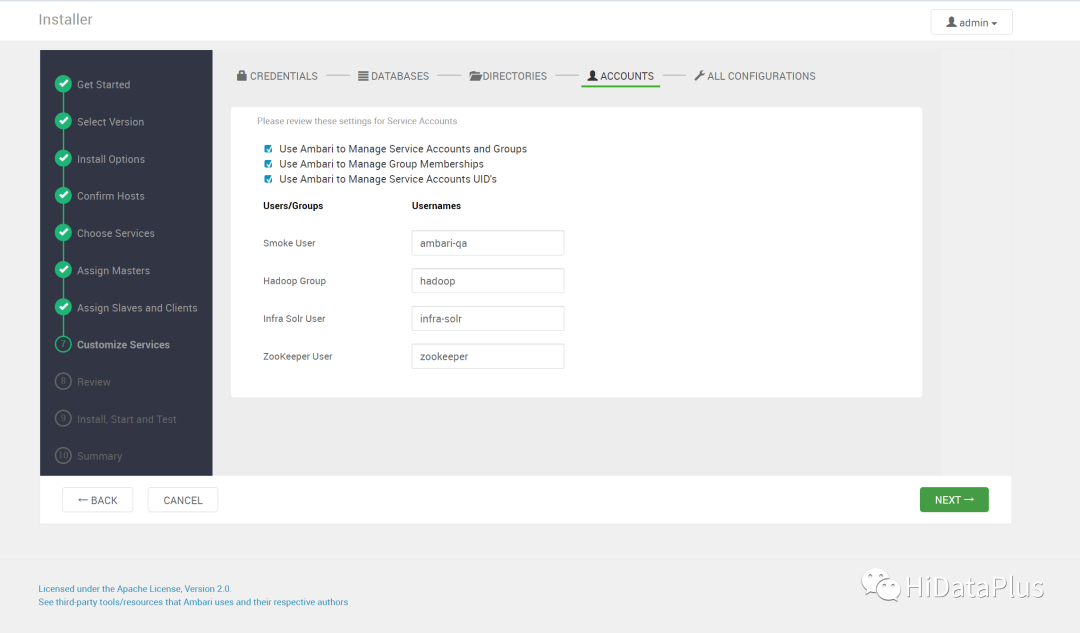
配置组件参数,这个根据需求配置即可,如果测试,或者不了解各组件的相关配置可以先使用默认。生产需要参考经验调整。
目录配置
用户配置
参数配置
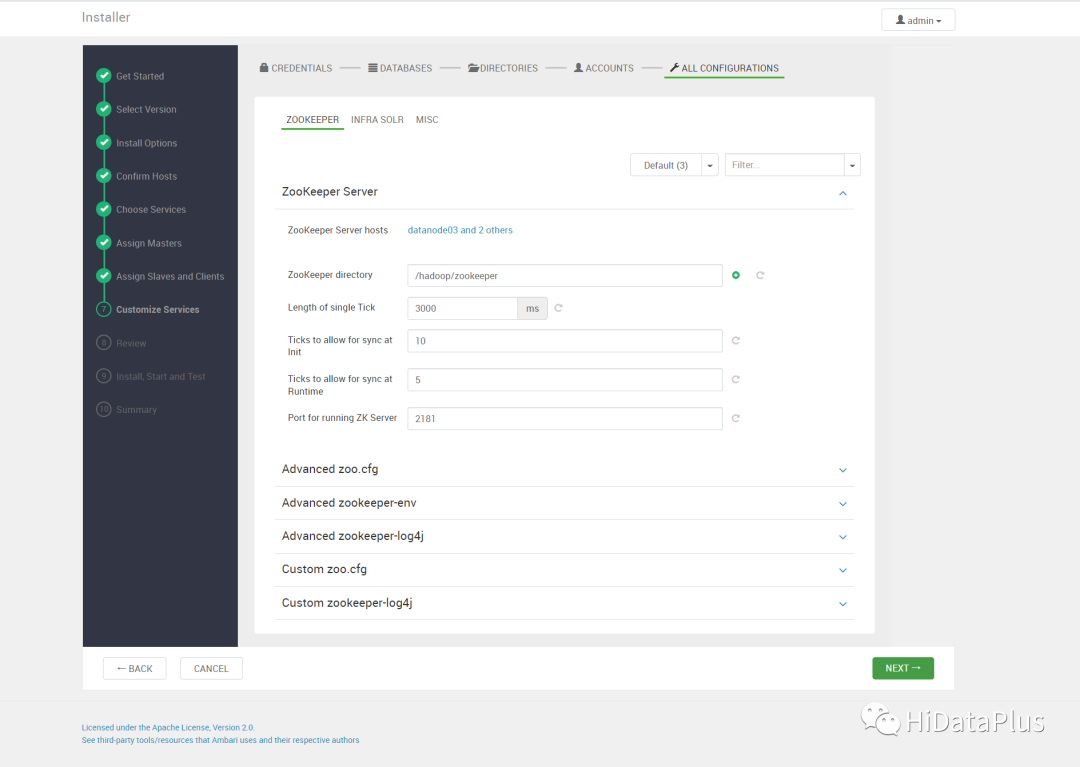
配置完成
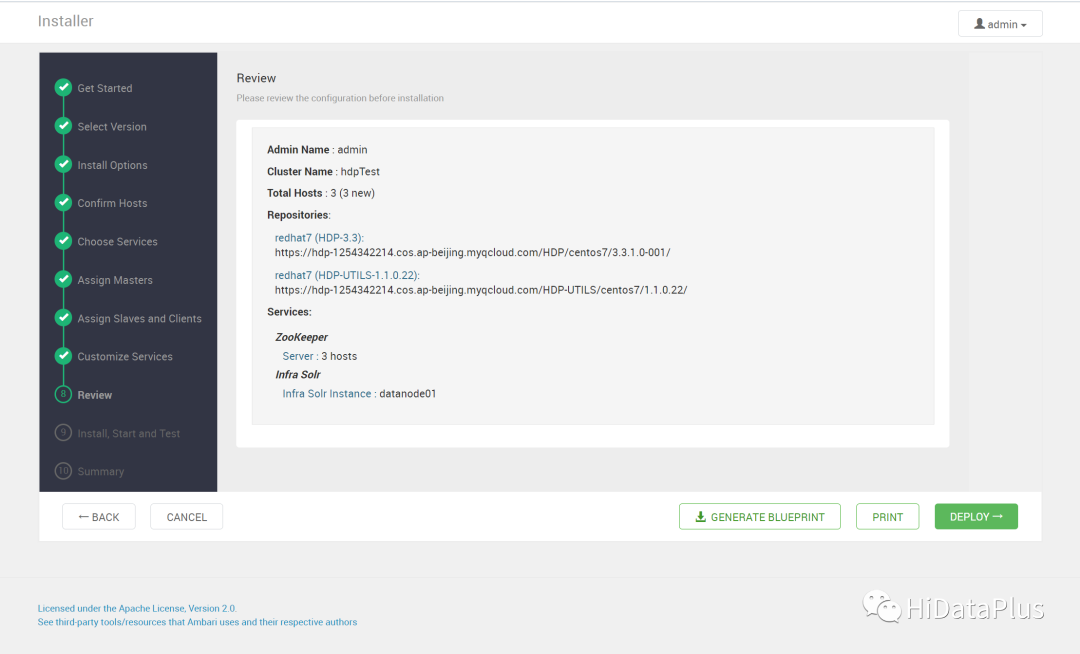
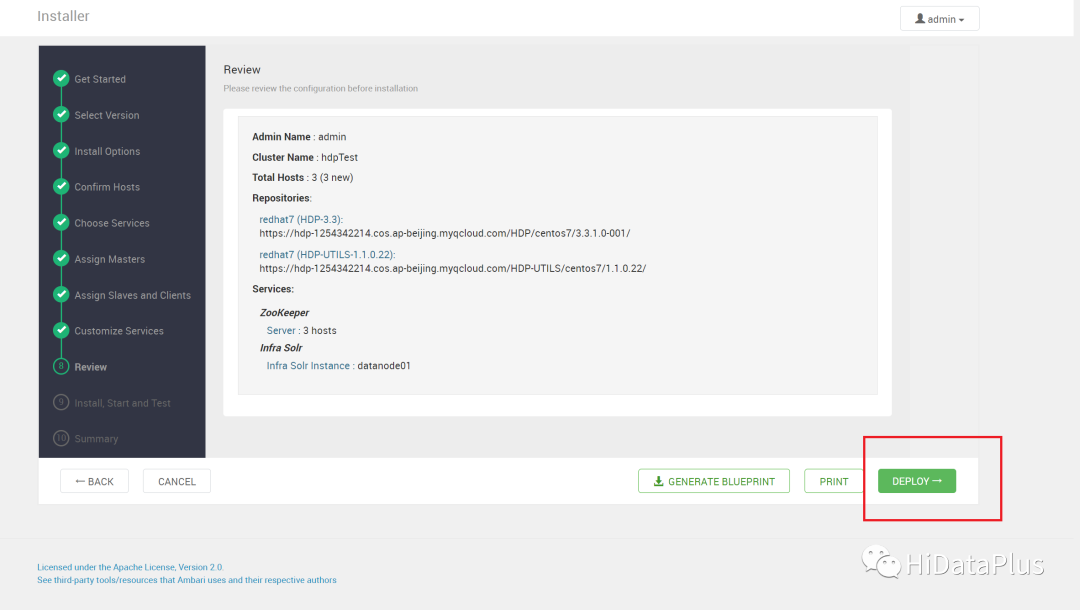
配置完成后点击DEPLOY
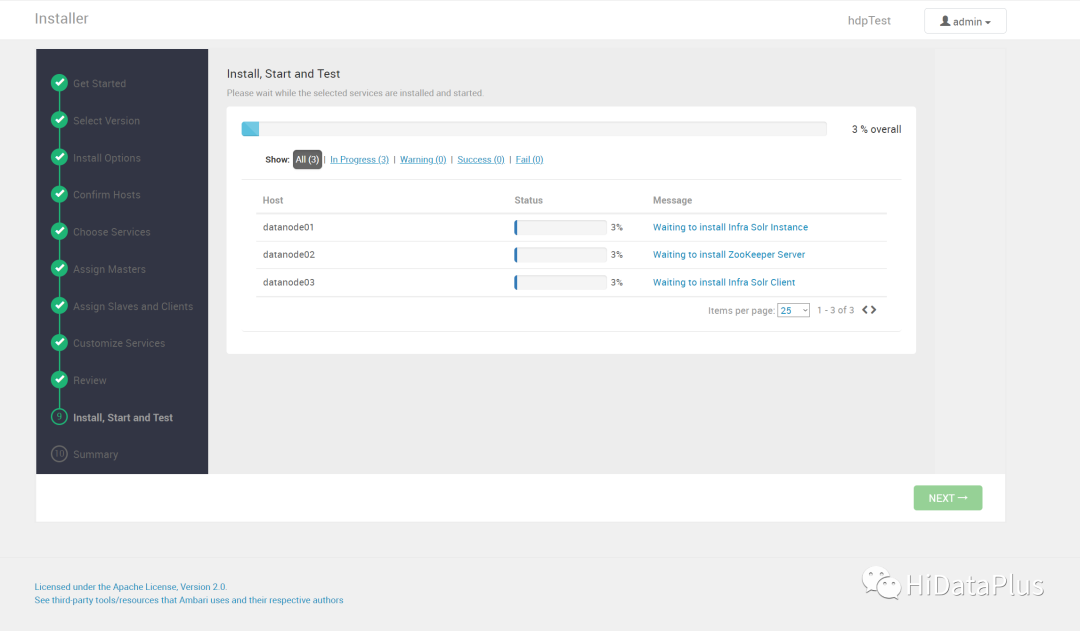
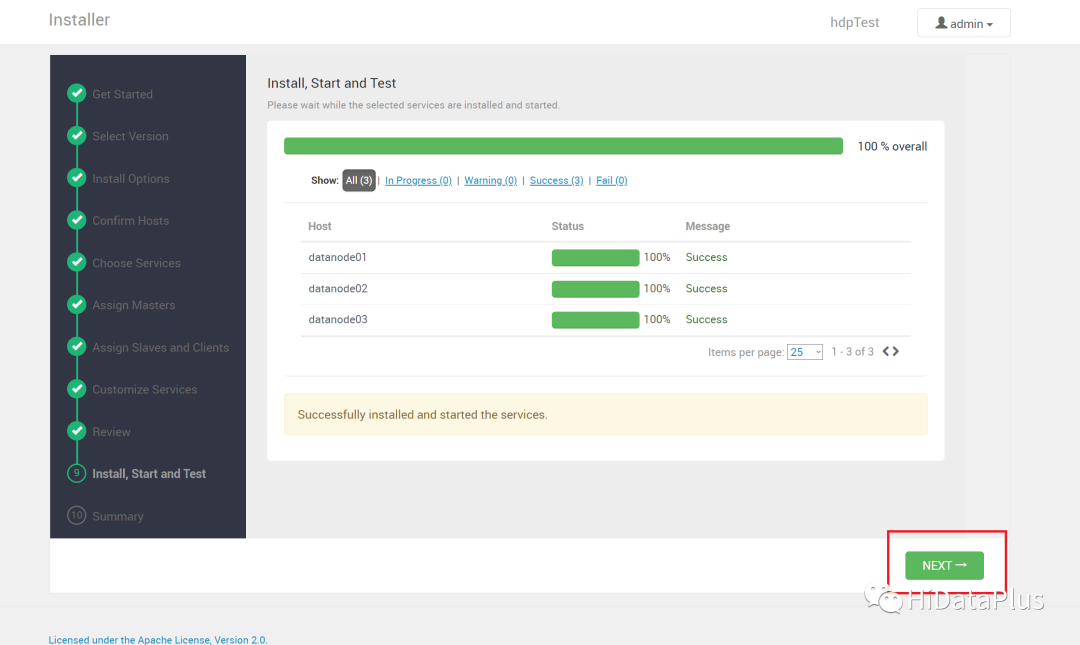
执行安装,时间可能比较久。
安装完成,可能会有报错,可以参考常见问题解决。
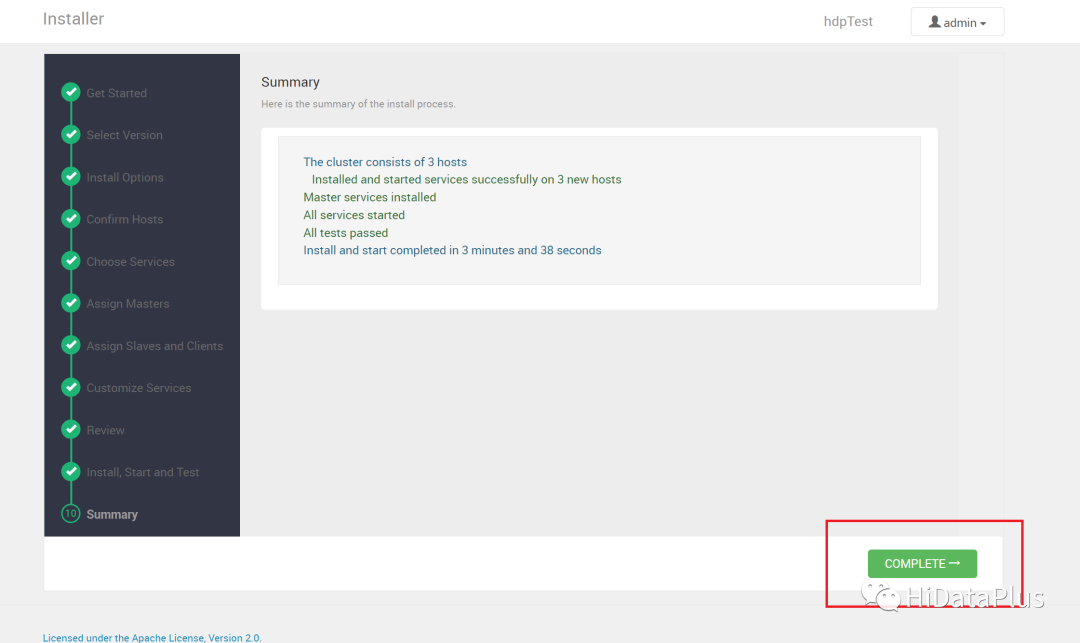
COMPLETE
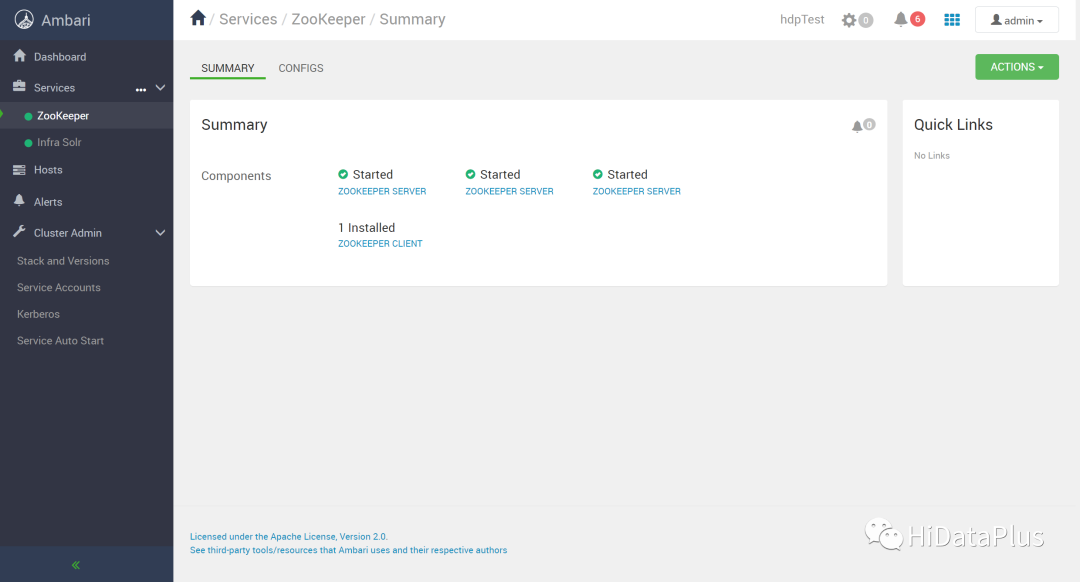
完成后,进入Ambari管理界面,就可以看到已经安装的组件。
(3) 注意事项
- 如果是第一次使用HDP,建议只选择Zookeeper一个组件熟悉安装流程,避免选择太多组件导致问题较多,情绪受挫。
- 因为Hadoop相关的组件本身技术有一定门槛,即使是熟手,也会遇到问题,不要气馁,可以联系我们
Ubuntu操作系统(Deb包管理)
以下以Ubuntu22为例说明TODO